ModelOpacity
Install and set up
You install the desktop app, sign in with Discord, and choose what to share.
Nothing is collected until you say yes.
Desktop app
ModelOpacity runs on Linux, Windows and macOS.
macOS · .dmgWindows · .exeLinux · .AppImage
- Download the installer for your computer with one of the buttons above. Each button always gives the newest version.
- Open it. The page jumps to the pictures for your computer: follow them once.
- The app opens set-up.
- If the site is invite-only, open your invite link in your browser before you sign in. An account that already exists signs in without one.
- Sign in with Discord in the browser window that opens. The app continues by itself.
- Select Agree and continue. Both choices start checked.
- Activity starts chosen. Keep it or choose Totals or Context, then select Next. Each column lists what that position shares.
- Check the tool hooks. They start on. Switch one off to leave that tool’s settings as they are.
- Select Finish set up. The app counts every AI tool it finds and sends the token counts to your account.
- From then on the app starts in the tray when you sign in to your computer. Start when I sign in, in Devices, turns this off.
macOS: the first open
ModelOpacity has not been notarized by Apple. macOS asks you to allow it on the first open.
- Download the Mac app with the button above. Open the .dmg file from your browser’s downloads.
- Drag ModelOpacity onto the Applications folder in the .dmg window.
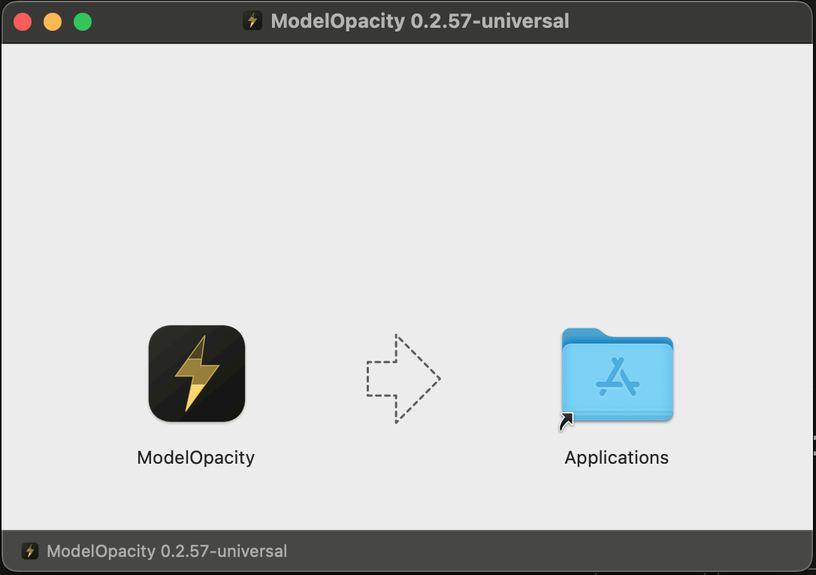
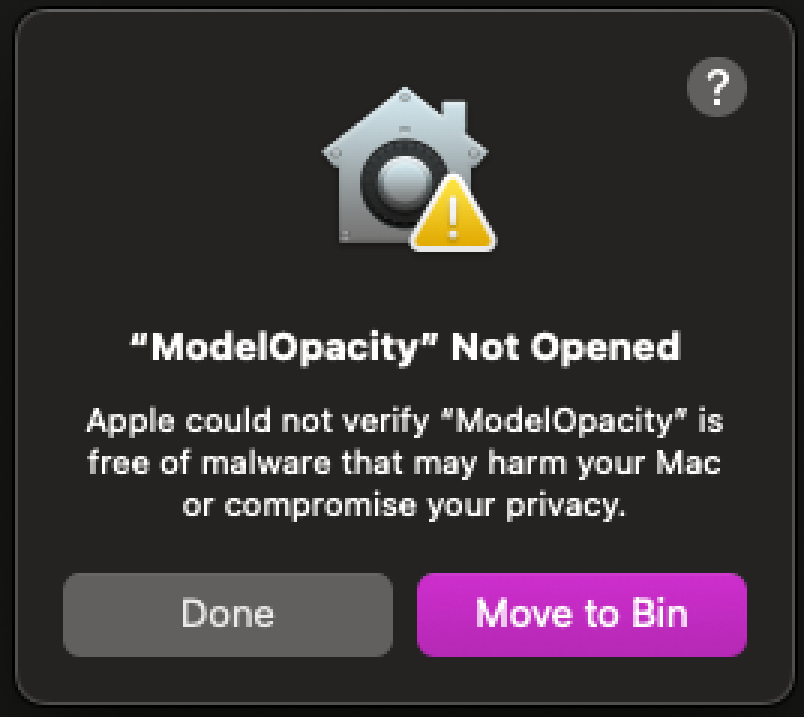
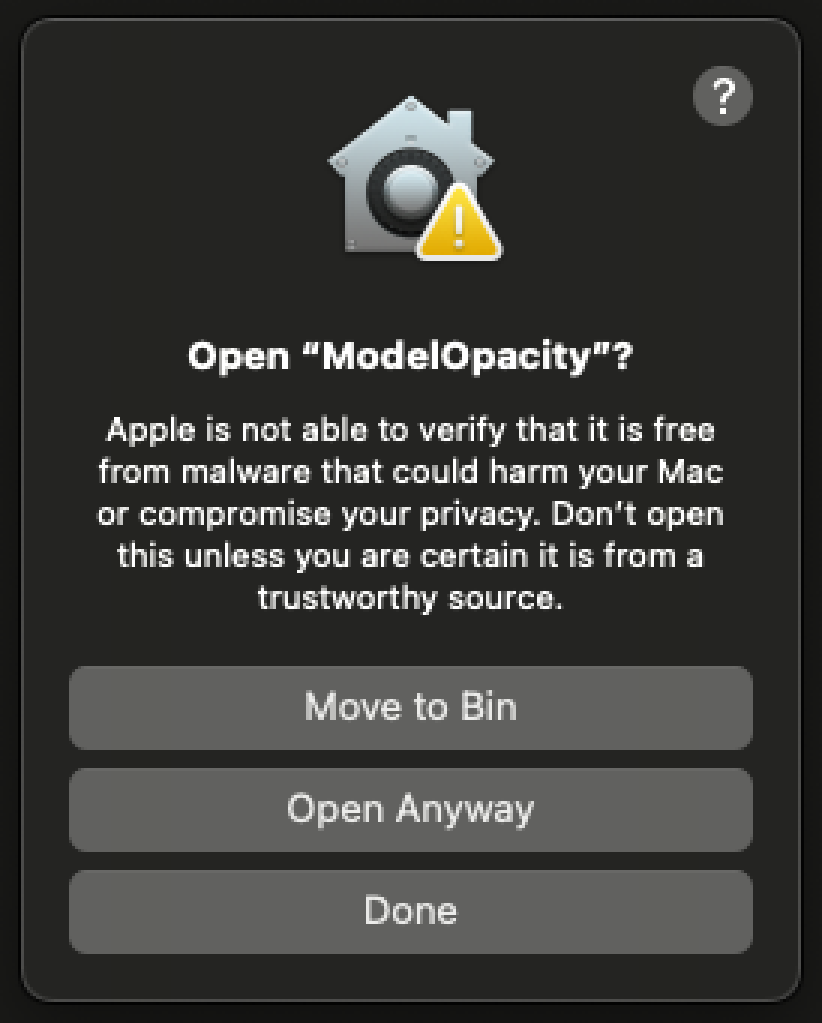
- In Applications, double-click ModelOpacity. When macOS shows “ModelOpacity” Not Opened, select Done.
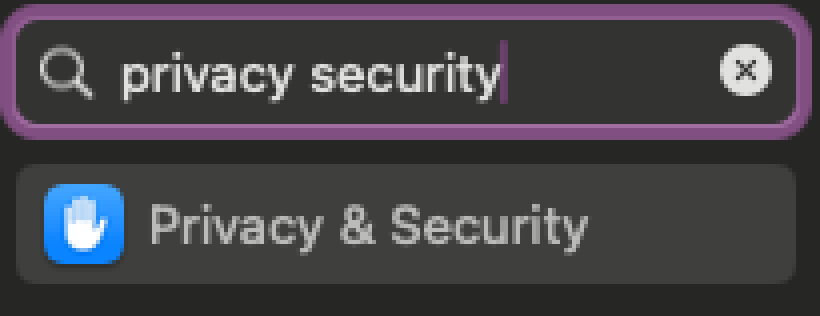
- Open System Settings. Search for Privacy & Security and select it.
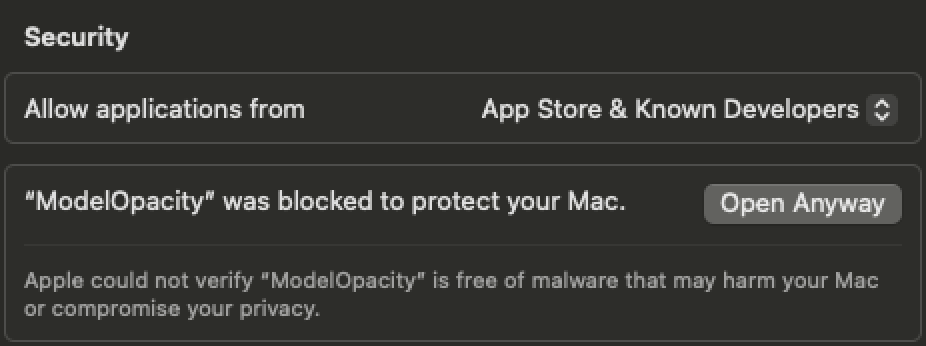
- Scroll down to Security. Next to the ModelOpacity message, select Open Anyway.
- When macOS asks “Open ModelOpacity?”, select Open Anyway.
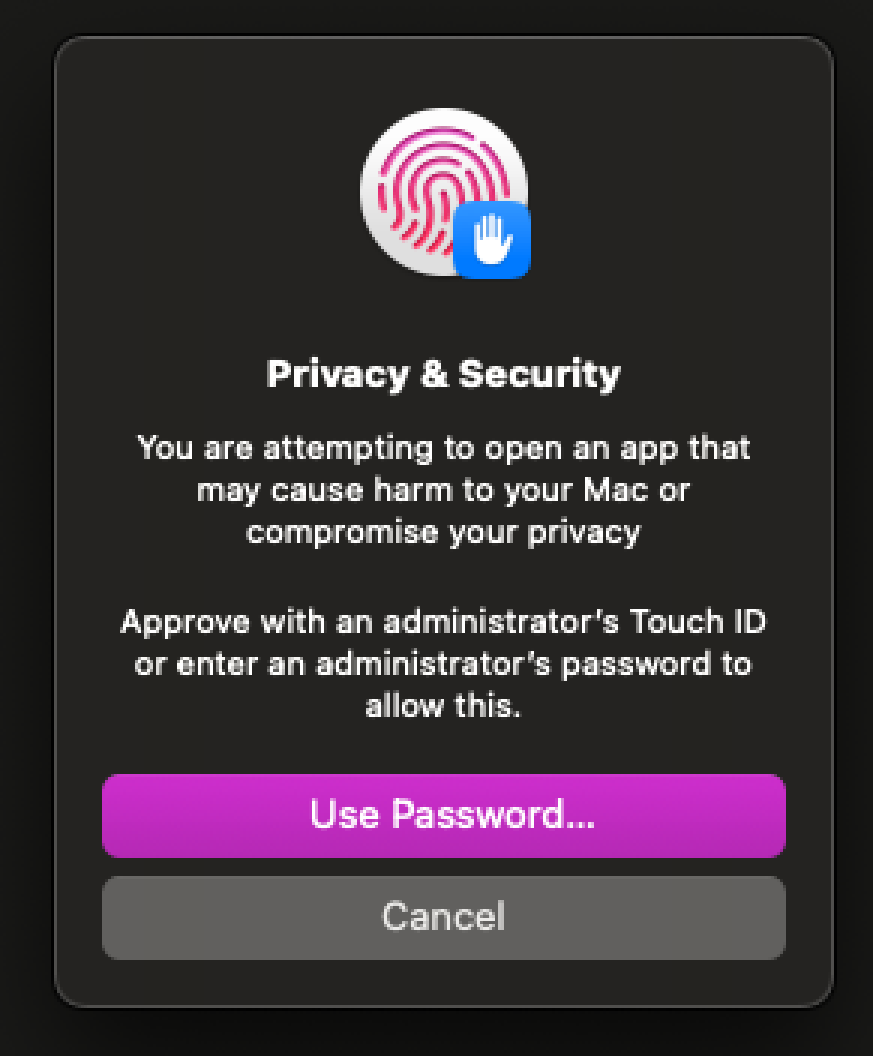
- Approve with Touch ID. Or select Use Password… and enter your Mac’s administrator password.
- The setup walkthrough opens. Continue with step 3 under Desktop app above.

Windows: the first open
You do this once. Updates install by themselves.
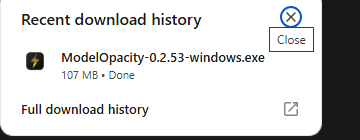 Open the file from your browser’s downloads.
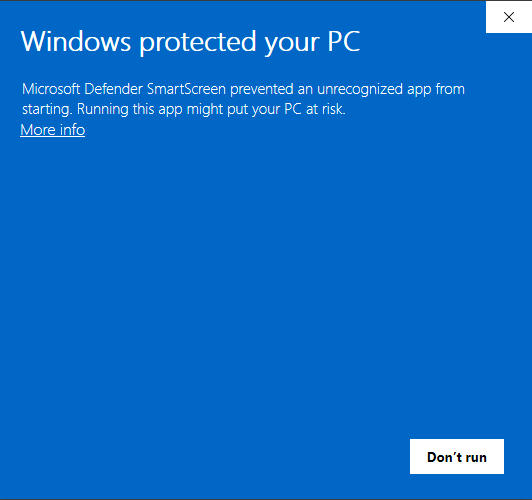 Windows shows a blue warning. Select More info.
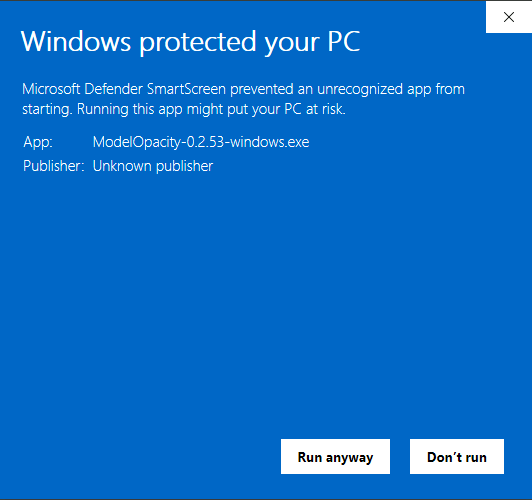 Select Run anyway. Unknown publisher means the app has no paid certificate.
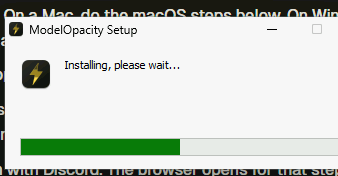 The installer takes about half a minute.
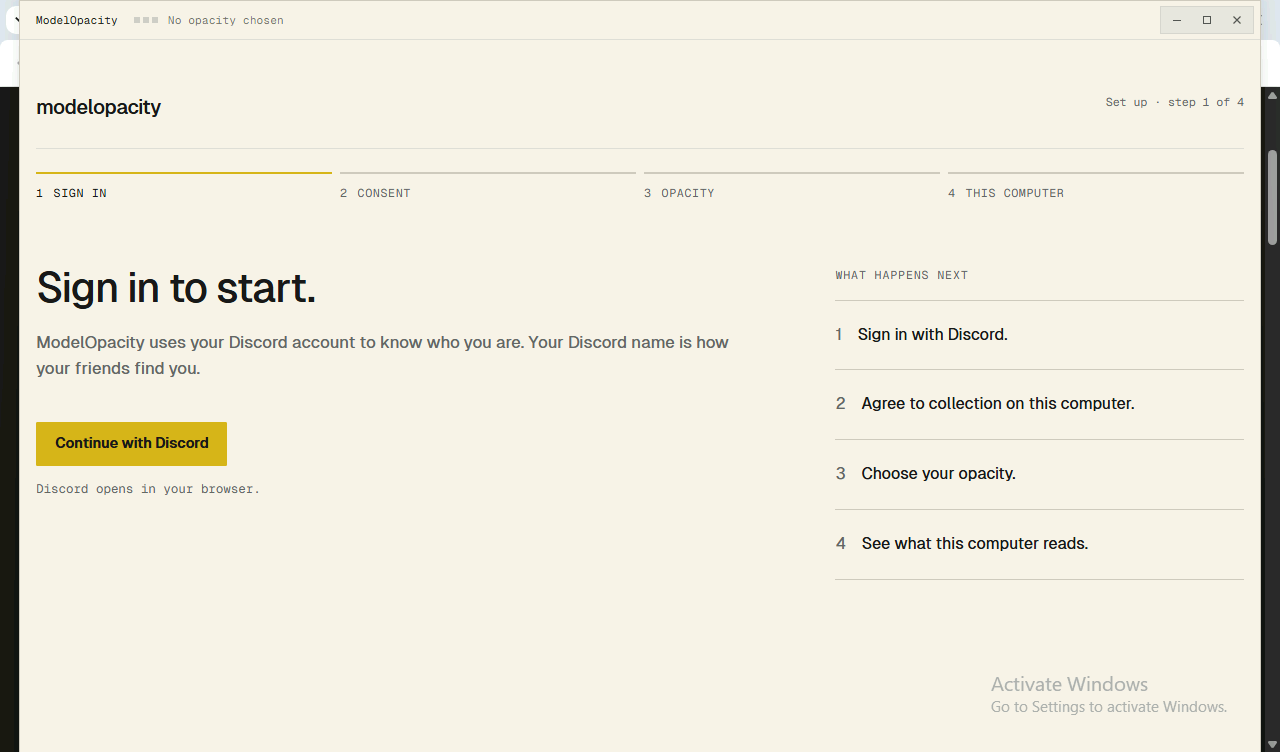 Open ModelOpacity from the Start menu. Set-up starts.
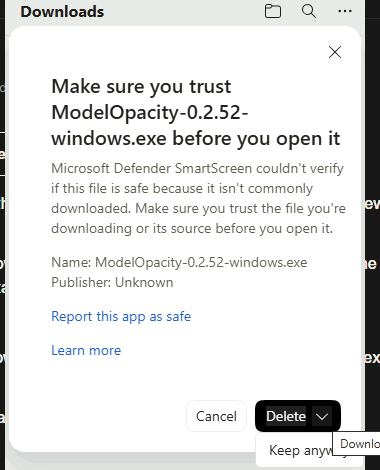
In Microsoft Edge the download can say “isn’t commonly downloaded”. Point at it, select ⋯, then Keep, then the arrow next to Delete, then Keep anyway.
Linux: the first open
- Put the AppImage in ~/Applications, so the app can update itself.
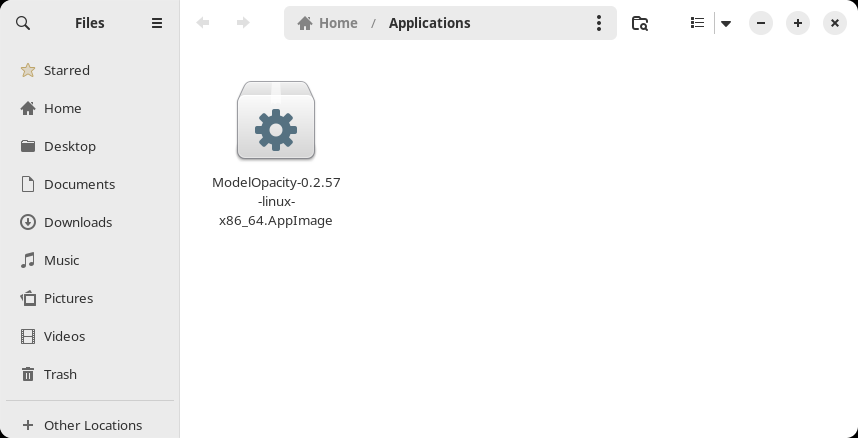
- Right-click the AppImage and select Properties.
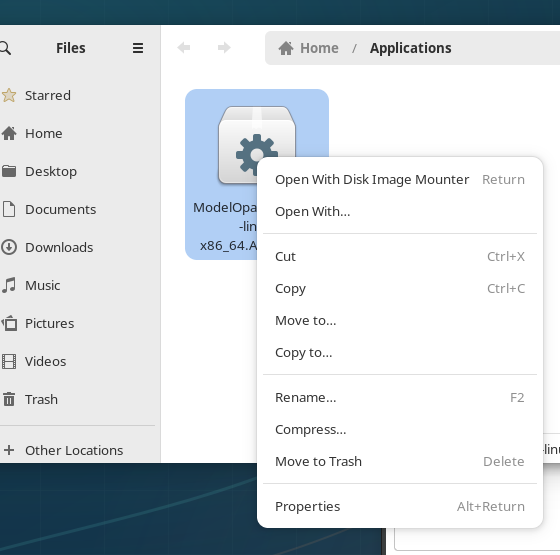
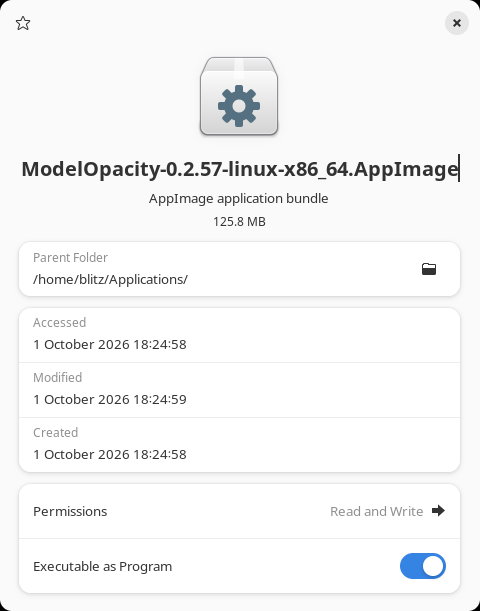
- Switch on Executable as Program. Or run chmod +x on the file.
- Double-click the AppImage. Set-up opens.
- If the AppImage does not open because FUSE is missing, open a terminal in its folder and run ./ModelOpacity.AppImage --appimage-extract-and-run. Replace ModelOpacity.AppImage with the downloaded file name.
Linux: the background collector
- On Linux the app installs a background service for your user, modelopacity-collector. It collects while you are signed in to the computer, also when the app is closed.
- The window, the tray and Discord presence still come from the app. Pause collection in Devices also pauses the service.
- To turn the service on again after you turned it off, run systemctl --user enable --now modelopacity-collector.
Updates
- The desktop app checks for a new version every six hours and downloads it in the background.
- It installs the new version when it quits, for example when you sign out or restart the computer. It installs a download only when its signature matches the ModelOpacity key.
- On Linux the AppImage updates itself. Keep it in ~/Applications, so the app can replace the file.
- On macOS you select Open Anyway once, at the first install. Updates open directly.
- A server collector with automatic updates checks once a day. It installs a new version only when its signature matches the ModelOpacity key, then restarts its service.
- modelopacity-ingestor update does the same at once. modelopacity-ingestor auto-update off stops it.
A server without a desktop
A computer without a desktop can send its activity to your account.
- Install Node.js 22.18 or later.
- Sign in to the server over SSH as the user whose AI tools it should read. Use the same user account as those tools.
- Download the collector and install it into your home folder with these two commands. If the shell then does not find modelopacity-ingestor, start it as ~/.local/bin/modelopacity-ingestor.
curl -fLO /downloads/collector/modelopacity-ingestor.tgz
npm install --global --prefix "$HOME/.local" --ignore-scripts --offline ./modelopacity-ingestor.tgz
- Open Devices in a browser and select Create a new code. The page shows the set-up command with the code. Run that command on the server.
- Answer the questions: collect on this computer, send token counts to your account, one hook for each AI tool it finds, automatic updates, and start at boot. Each answer defaults to yes.
- If the set-up prints a sudo command, run it once. It lets the collector start at boot before anyone signs in.
- For each hook you leave on, the set-up adds one setting: two entries in Claude Code's settings file, a notify command in Codex's settings that still runs yours, and one OpenClaw hook.
- modelopacity-ingestor hooks remove takes them out again. Hermes needs no hook.
Turning things off
- Discord presence: in the desktop app, open Opacity and select Pause ActivePresence. Collection continues.
- Collection: in the desktop app, open Devices and select Pause collection. The app keeps what it already read.
- The Linux background service: run systemctl --user disable --now modelopacity-collector. From then on the app collects only while it runs.
- Sending counts from a computer: open Devices and select Unlink on its row. Local collection continues.
- A linked server: select Unlink on its row in Devices, or run the unlink command on the server.
- Every share level is yours to change at any time.
Troubleshooting
- The sign-in window opens but the app stays signed out.
- Finish the Discord step in the browser and return to the app. The app checks every two seconds for up to ten minutes.
- A tool is listed as not found.
- The app reads the default folder of each tool, for the user who is signed in. Use the tool once as that user, then restart the app.
- Discord shows no activity.
- Open Opacity. The Discord app must run on the same computer, ActivePresence must be on, and you must have used tokens in the last 60 minutes.
- macOS does not open ModelOpacity.
- Do the macOS steps above. If Privacy & Security shows no Open Anyway button, double-click ModelOpacity in Applications again, then look again within the hour.
- The app does not start when I sign in.
- Open Devices and check Start when I sign in. On macOS, keep ModelOpacity in Applications and allow it in System Settings, General, Login Items. On Windows, enable it in Task Manager, Startup apps.
- The graph reads Unavailable.
- A period without a reading reads Unavailable, never zero. Use an AI tool once and wait a minute.
- The collector reports sync-consent-required.
- Run the set-up again on that computer and answer yes to sending token counts.
- Home shows no counts for this computer.
- In the desktop app, open Devices. If it offers Send this computer’s counts, the computer is not linked yet. Select it once.
- The collector cannot reach the account.
- The address must use HTTPS, except for a loopback address. Check that the computer resolves the hostname.
- Something went wrong and you want to send us the details.
- Send the app’s log files. macOS: ~/Library/Logs/ModelOpacity. Windows: %APPDATA%\ModelOpacity\logs. Linux: ~/.config/ModelOpacity/logs. They hold events and error codes, never your content.